

Connect Wing
to Hermes
Requirements
An Android phone running Android 7.0 or newer and a reachable Hermes setup with its dashboard, Desktop Gateway and a configured model provider.
A model-provider API key alone is not enough to connect Wing. Your Hermes server and model providers may have their own costs.
Install, connect and start a chat
-
Install Wing
Download a signed APK from the latest release. Choose arm64-v8a for most current phones. Android may ask you to allow installation from your browser or file manager.
-
Connect your agent
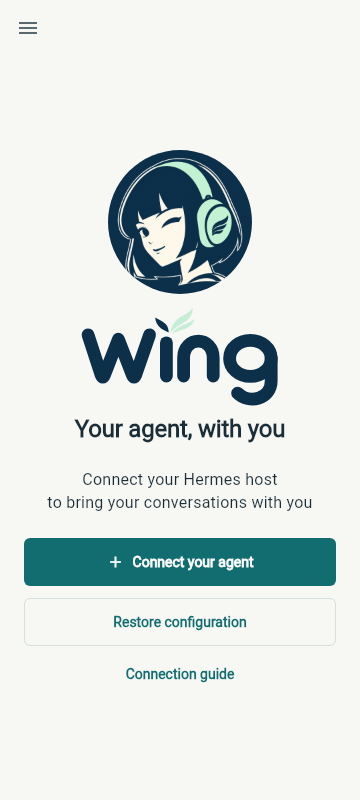
Open Wing and choose Connect your agent. For Hermes Cloud, sign in through Nous Portal and select your instance. For Use an address, enter your Hermes dashboard address and sign-in details.
Wing checks profile access, live chat and history. When the checks pass, choose Save and open.
-
Start a chat
Choose a profile, create a chat and send a message.
Move between screens
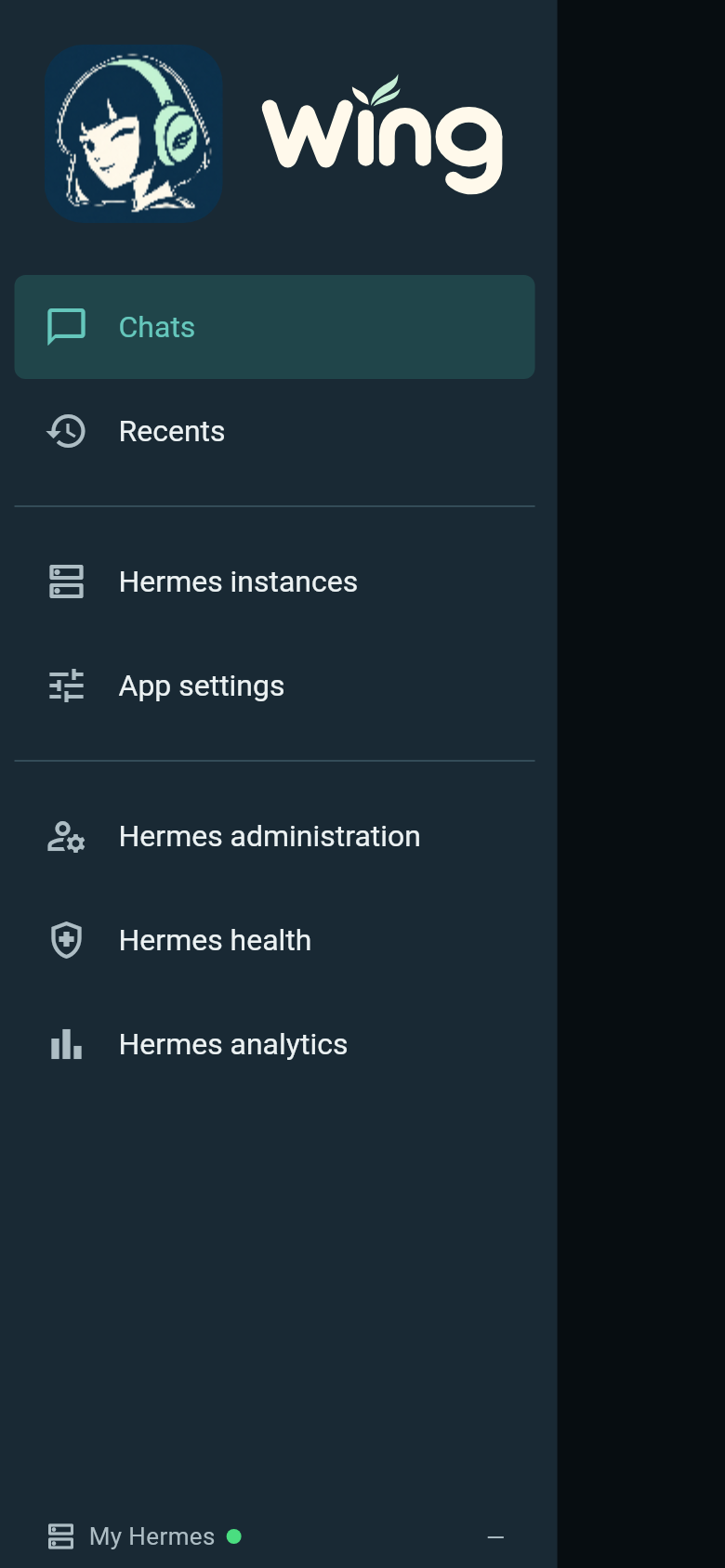
Open the side menu to reach Chats, Recents, Administration, Health and Analytics. Your current Hermes connection is shown at the bottom.
Fix a failed connection check
Check which part failed: profile access, live chat or history. Confirm that the dashboard and Desktop Gateway are reachable from your phone and that the sign-in details are correct.
Use HTTPS or an encrypted private network for remote access. The technical self-hosting guide covers server and proxy configuration.
Offline use, notifications and backups
Hermes can continue accepted work while your phone is disconnected. New messages and live controls need a connection. Some recently loaded chats can be read offline.
For screen-off notifications, allow background battery use and reopen Wing after restarting the phone. Android restrictions, force-stop and network loss can interrupt delivery.
Configuration backups include connections, credentials and preferences, with optional passphrase encryption. Conversations stay on Hermes; drafts and queues are excluded.
Privacy
The Wing maintainer does not relay your conversations. Your chosen Hermes server and model providers process your content. Connection details and app preferences are stored on your device.
Full privacy policy